Sign In Instructions
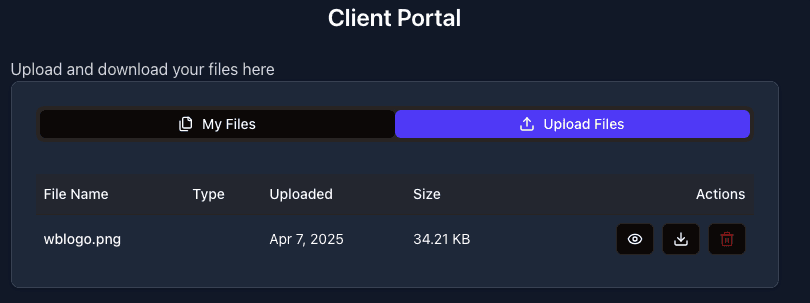
Using the WB Client Dashboard
The dashboard is where you can:
- Send files to WB
- Receive files from WB
- View and download your files
- Delete your files
Your dashboard looks like this:
How to Send Files to WB
You can upload multiple files at once:
-
Click on the "Upload Files" button.
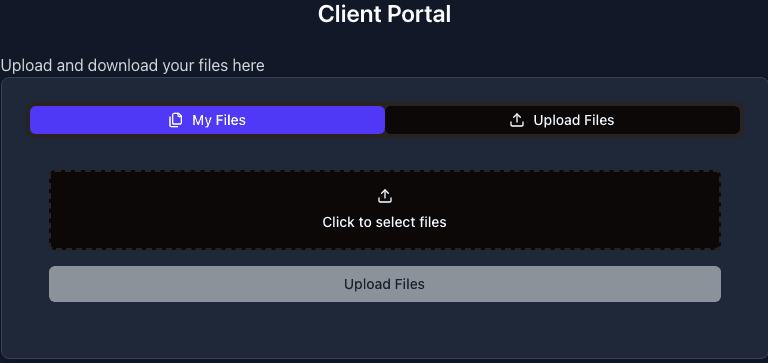
-
Select one or more files from your computer.
- On a Mac, the file selection dialog looks similar to this:
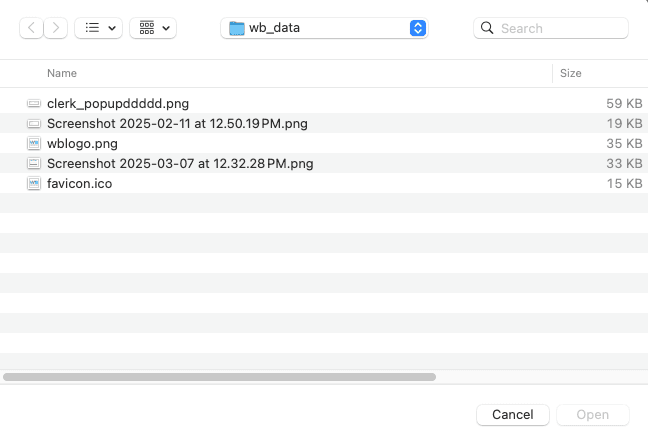
- Select the files you want to upload and click the "Open" or "Save" button.
- You will see a preview of the files you have selected:
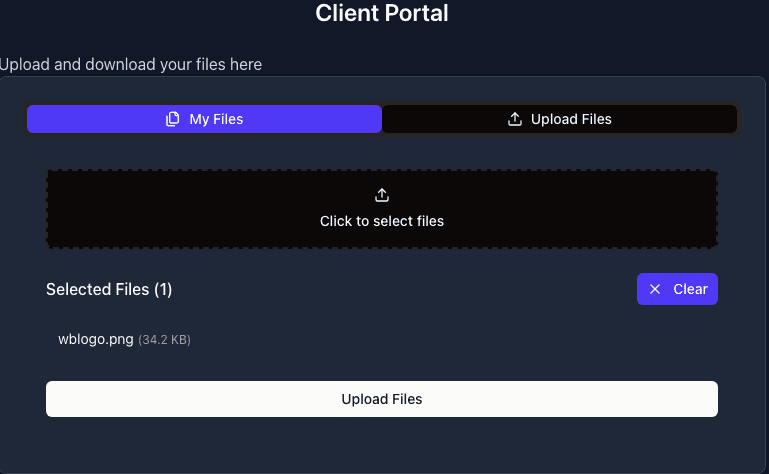
- Click the "Upload" button to send the files to WB.
- You will receive a notification of the success or failure of the file upload(s).
- Note: This message will disappear automatically after a brief period.
Managing Your Files
Viewing Files
Click on the file icon to view a file:  Note: Some file types can only be downloaded and cannot be viewed in the browser.
Downloading Files
Click on the download button to save a file to your device: 
Deleting Files
Click on the trashcan button to remove a file: 
Best Practices
- Although the system automatically deletes files at regular intervals, we recommend manually deleting files you no longer need.
- Note: You may only be able to delete files that you have uploaded yourself.
- Important: Always keep a copy of your files on devices and systems that you control.